
GPT Image 2.6 Flare: Fast Generation Model
See the direction quickly
For fast generation, comparison, and interactive adjustment. Get the concept into the image first, then decide what deserves another pass.
Faster generation, precise editing
Use GPT Image 2.6 as an AI image generator and AI image editor for text-to-image prompts or reference image editing. Generate, refine, and export GIF or SVG visuals with Flare for fast iteration and Sunburst for complex layouts, fine detail, and targeted edits.
See the direction quickly
For fast generation, comparison, and interactive adjustment. Get the concept into the image first, then decide what deserves another pass.
Give complex images another layer of care
When detail, object relationships, layout, or editing accuracy matters more, leave more room to work through the requirements that matter.
GPT Image 2.6 capabilities
Generate from a text prompt or reference image, then control visual planning, targeted image edits, and the SVG, GIF, or raster format you hand off next. Each workflow begins with a direction you can review, then gives you a focused way to refine composition, selected objects, and delivery format without starting again from a blank prompt.
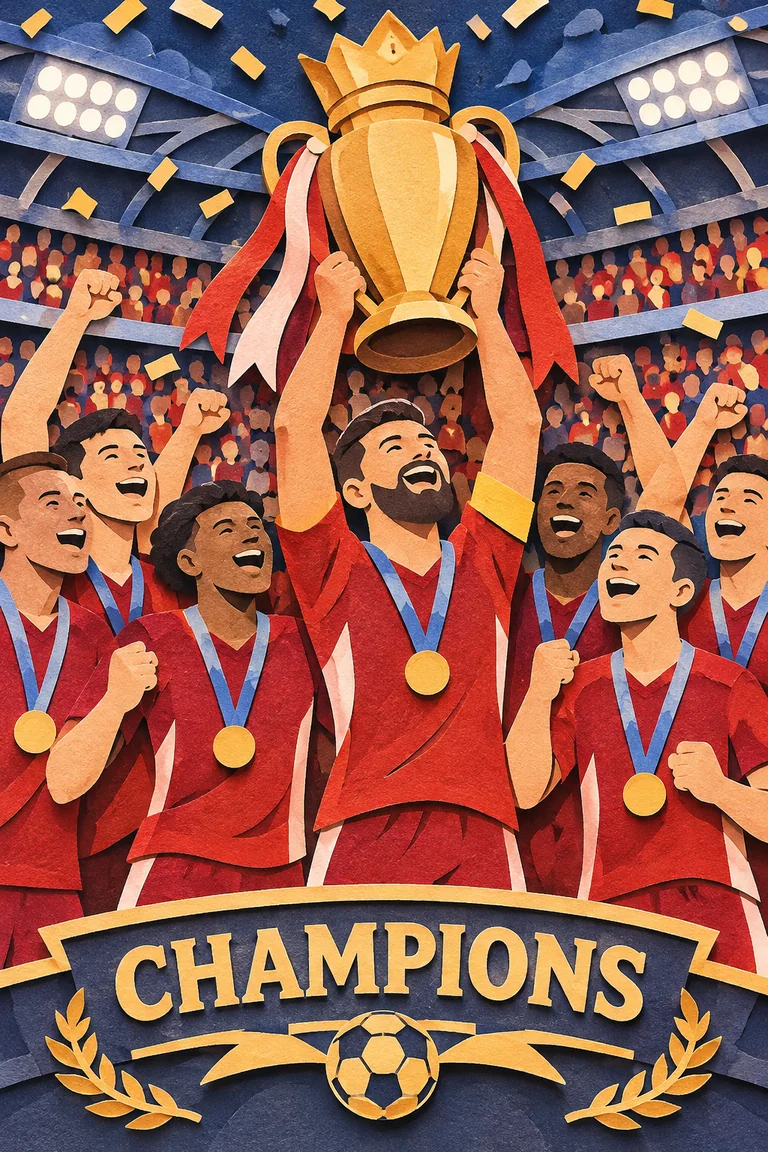
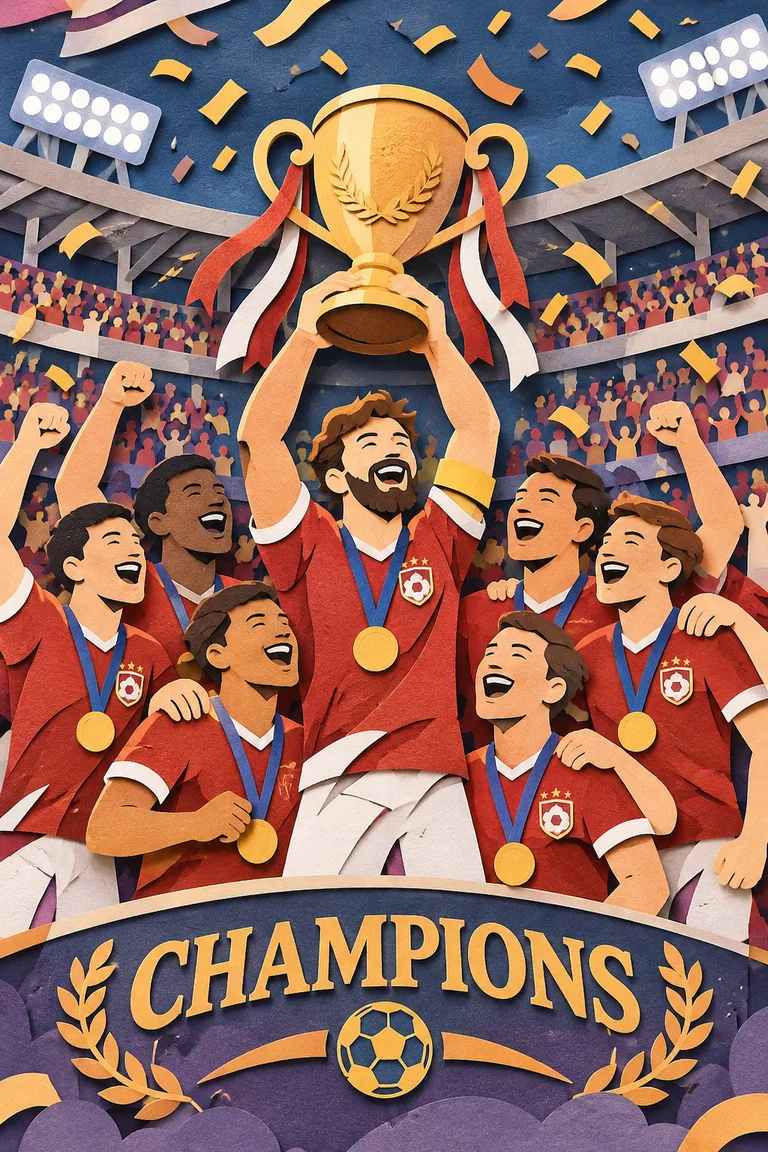
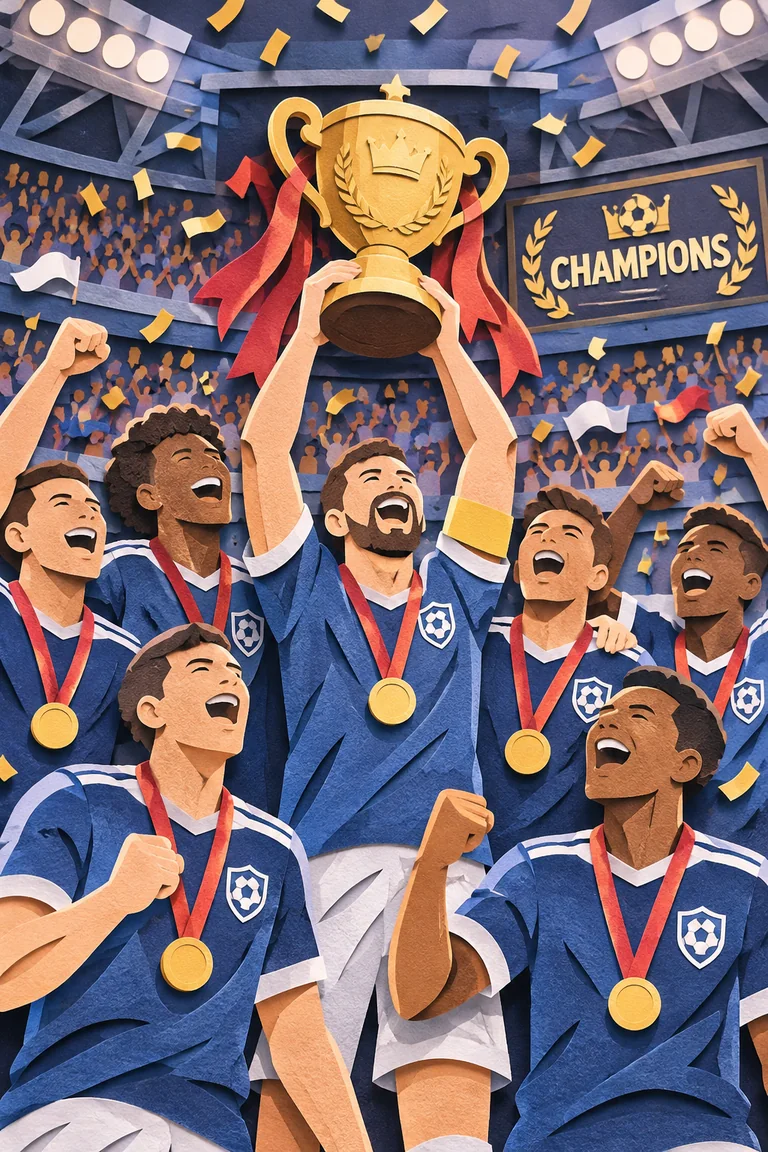
Complexity control
Low complexity suits one clear change. When an image has dense text, a complex layout, or several object relationships, compare a higher complexity setting.
Use low when the instruction has one dominant subject or revision. Move to medium when the result needs several details to work together, and use high when hierarchy, object placement, or readable text must be planned across the whole frame. Compare the same prompt at two settings before assuming that more complexity is always better: a simple product correction can be clearer at low, while an infographic or editorial layout may need more planning.
Markup-guided local editing
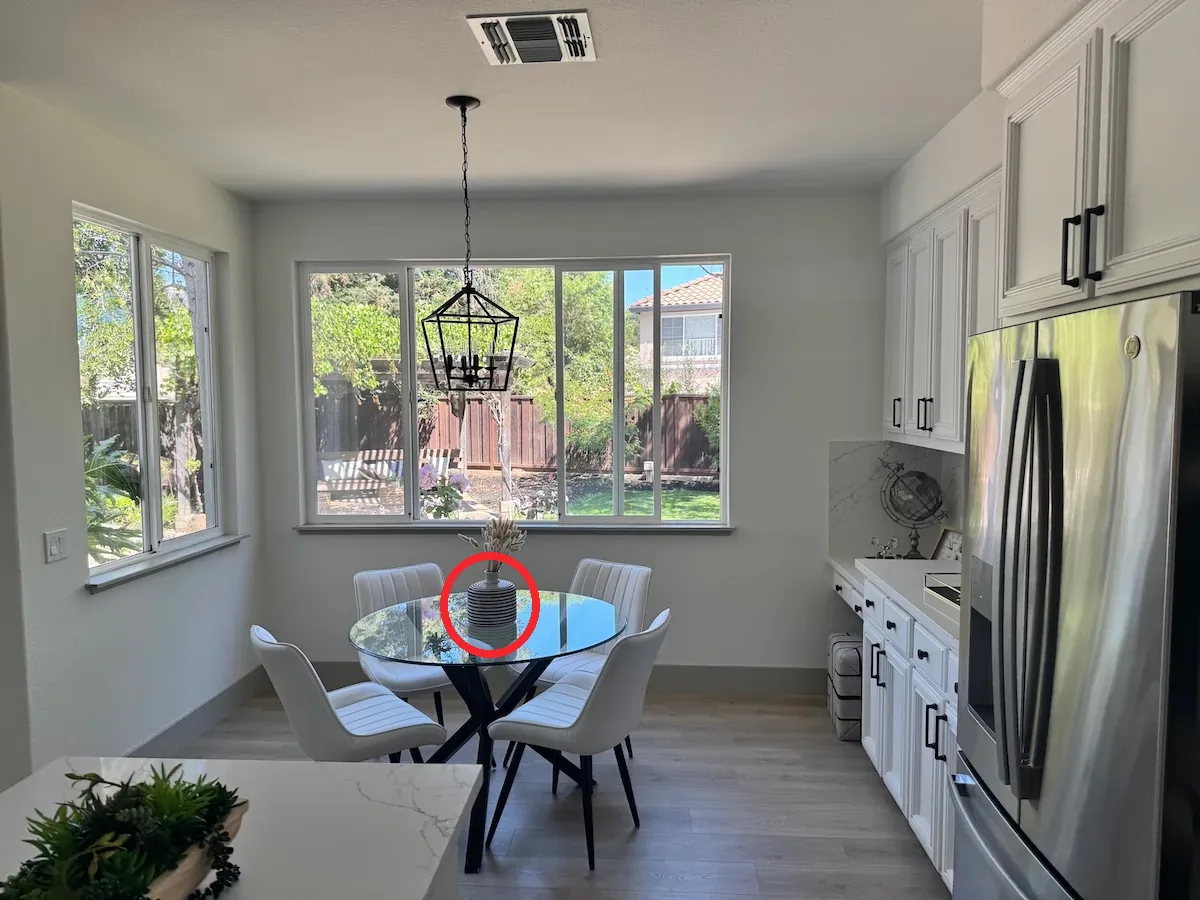
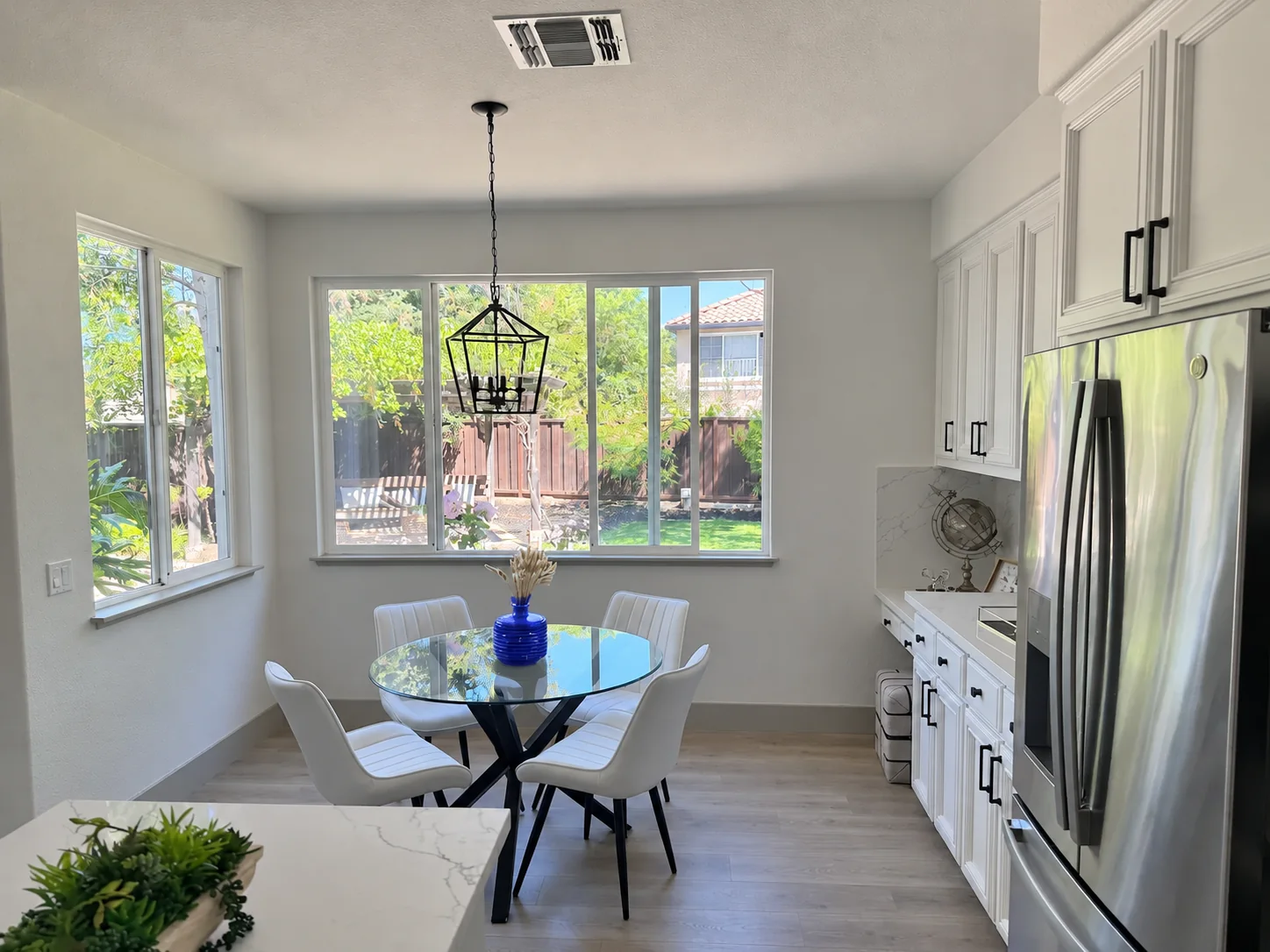
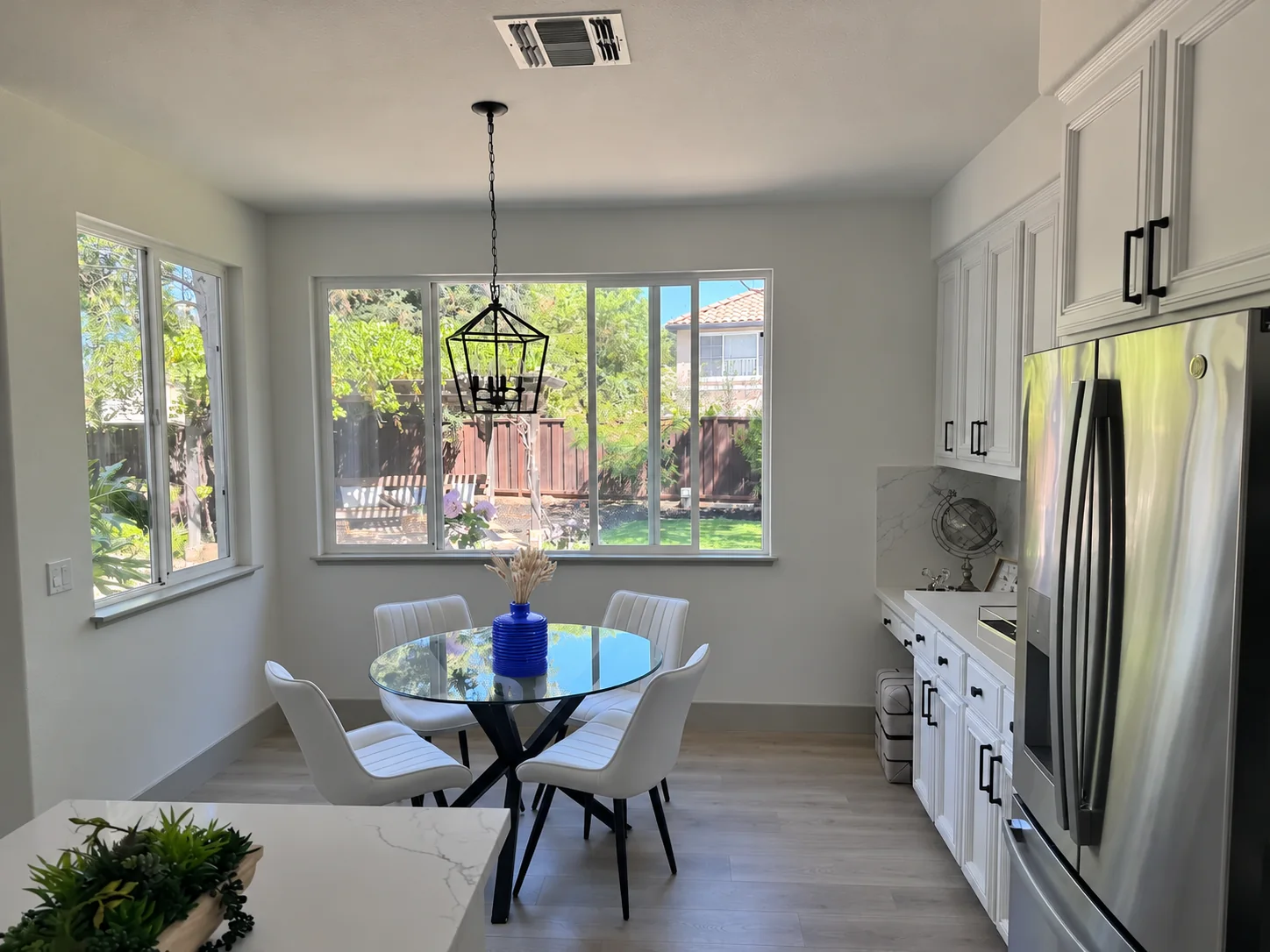
The documentation example marks one vase for replacement while preserving its shape, the dried flowers, and the surrounding kitchen.
A useful markup request names both sides of the edit: identify the region to change, then state what must remain untouched. For example, mark a product label for replacement while asking to keep the bottle shape, lighting, camera angle, and background. Review the boundary of the edited region after each pass, especially where it meets text, hands, hair, reflections, or overlapping objects.


SVG and animated GIF output
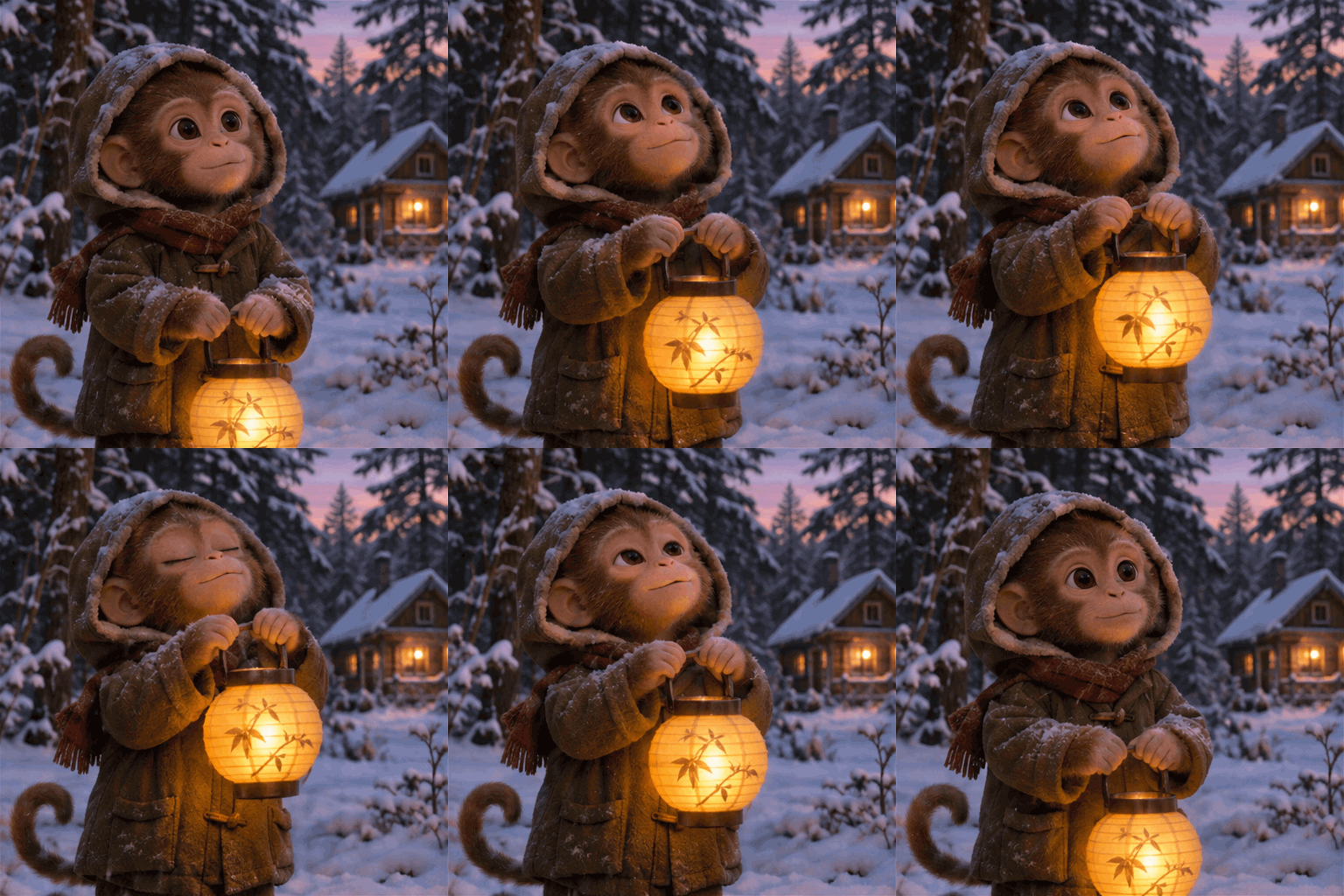
Use SVG when you need to adjust paths, colors, or scale. Use GIF when the result needs a looping action.
Choose SVG for marks, icons, diagrams, and simple graphics that another designer may recolor or resize. Choose an animated GIF when motion needs to play without a video control, such as a short product loop or social preview. PNG, JPEG, and WebP remain useful for raster imagery; select the format based on the next production step rather than treating one output type as the default for every image.
Multi-turn image editing
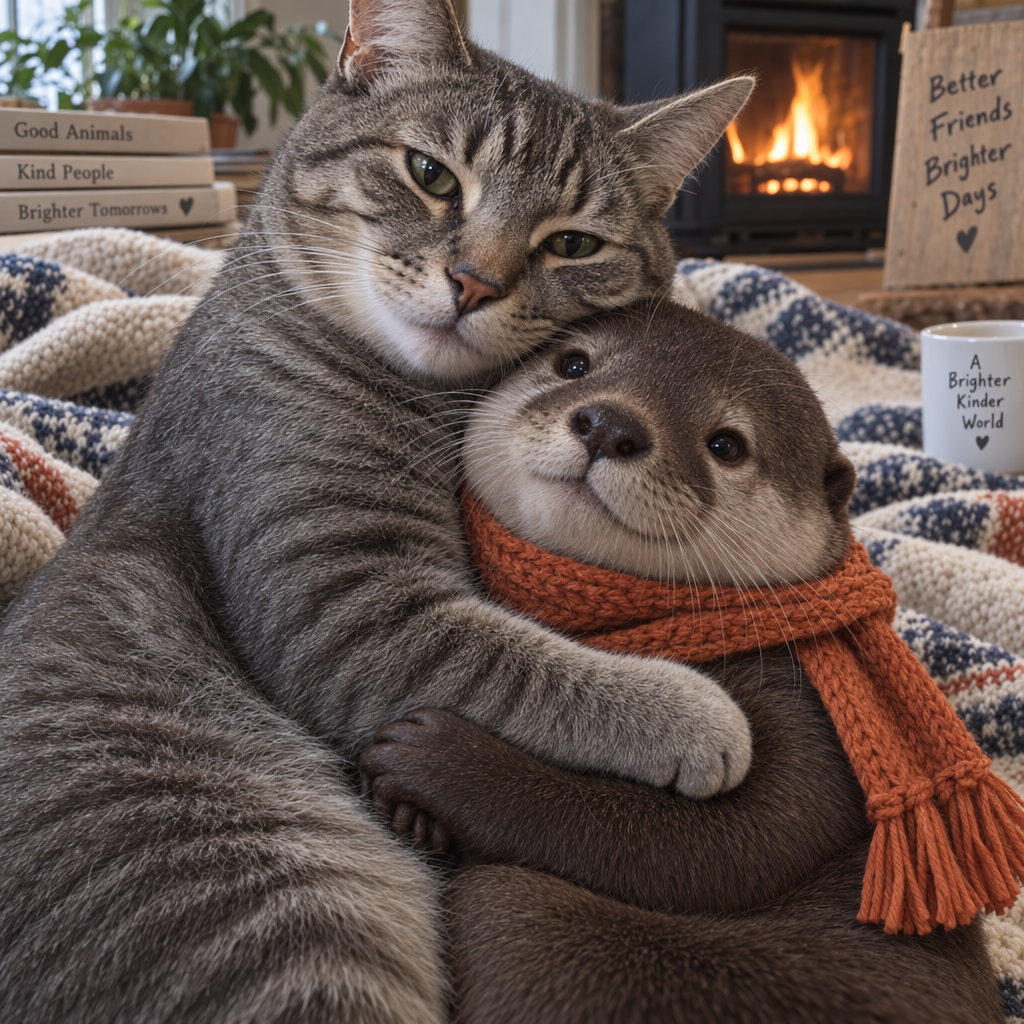
Use the initial illustration as the next input. Change only its visual style while keeping the cat, otter, and their relationship intact.
Keep each follow-up request narrow enough to review. Start by confirming the composition, then change one condition such as material, lighting, style, or a selected object. Reusing the previous result makes it easier to preserve the subject identity and spatial relationships that already work, while a written record of each change makes it clear which instruction caused an unwanted shift.

Faster iteration
With the same Luxury Travel Ad prompt, this GPT Image 2.6 example completed before the GPT Image 2.5 example. That leaves more room to compare directions, adjust the prompt, and keep the work moving.
Example completion time
2.24s faster in this example
Understand the brief. Keep the creative direction.
Explore how complex instructions, image text, detailed layouts, and art direction hold together across a range of examples. Each prompt identifies the visual relationships that matter, such as material, hierarchy, lighting, or the placement of small elements. Use the examples to see how a specific brief can be broken into subject, composition, text, and finish before you write your own request.
Create with GPT Image 2.6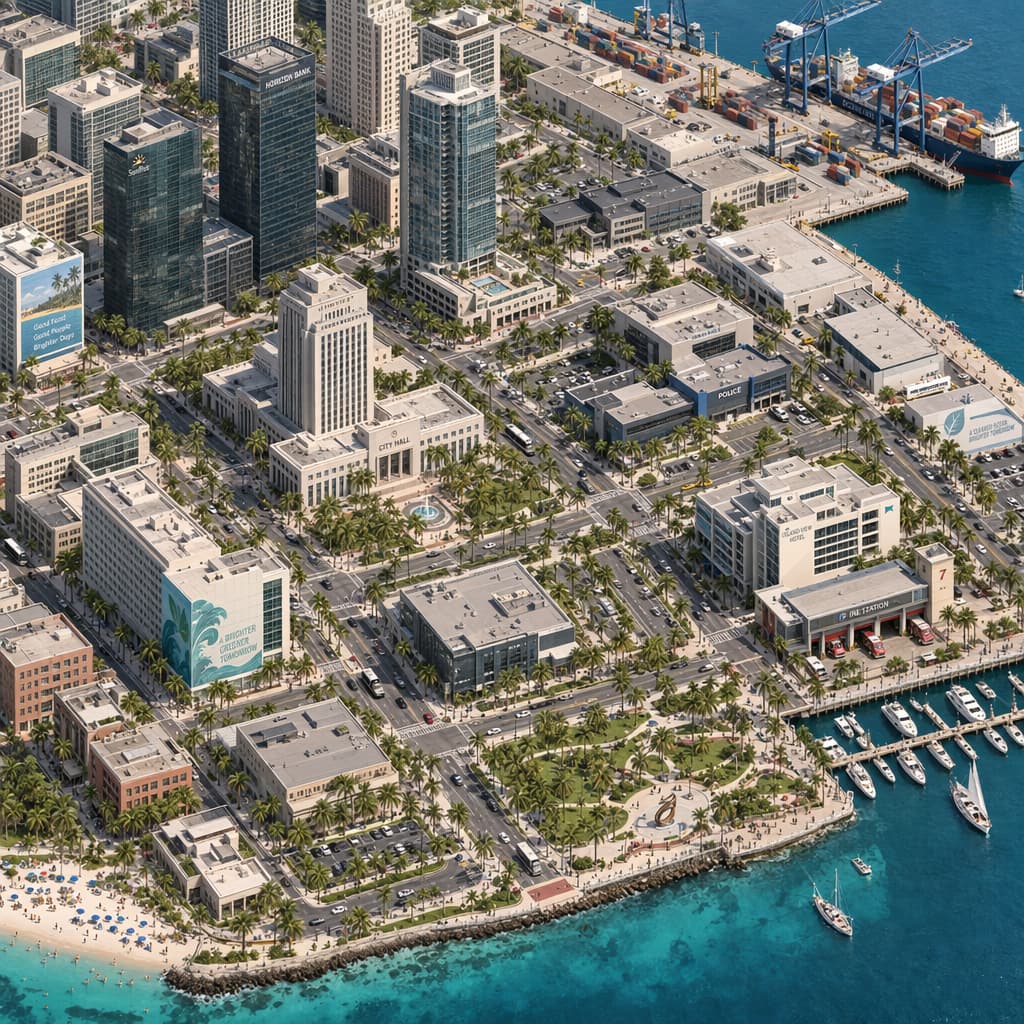
A rain-soaked future city with precise 3D staging and cinematic lighting
1 / 15Creative workflows
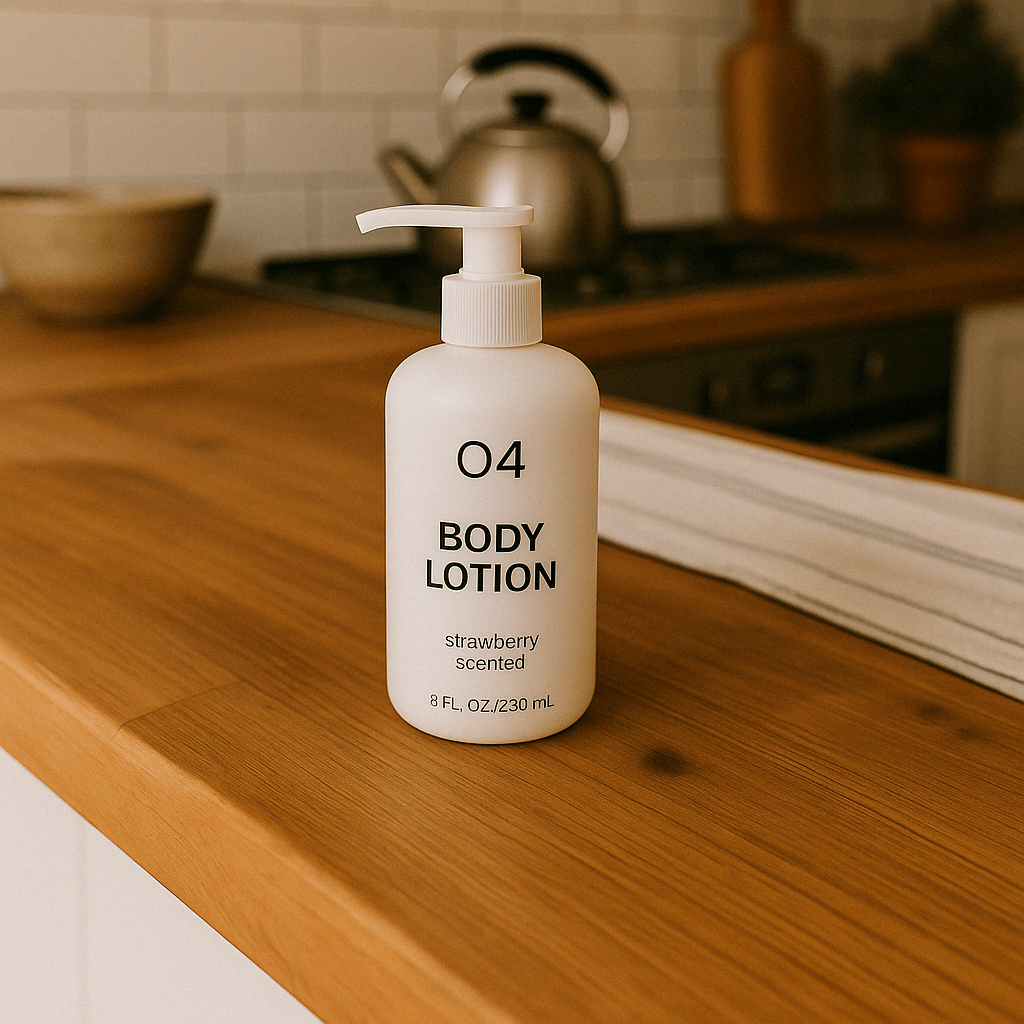
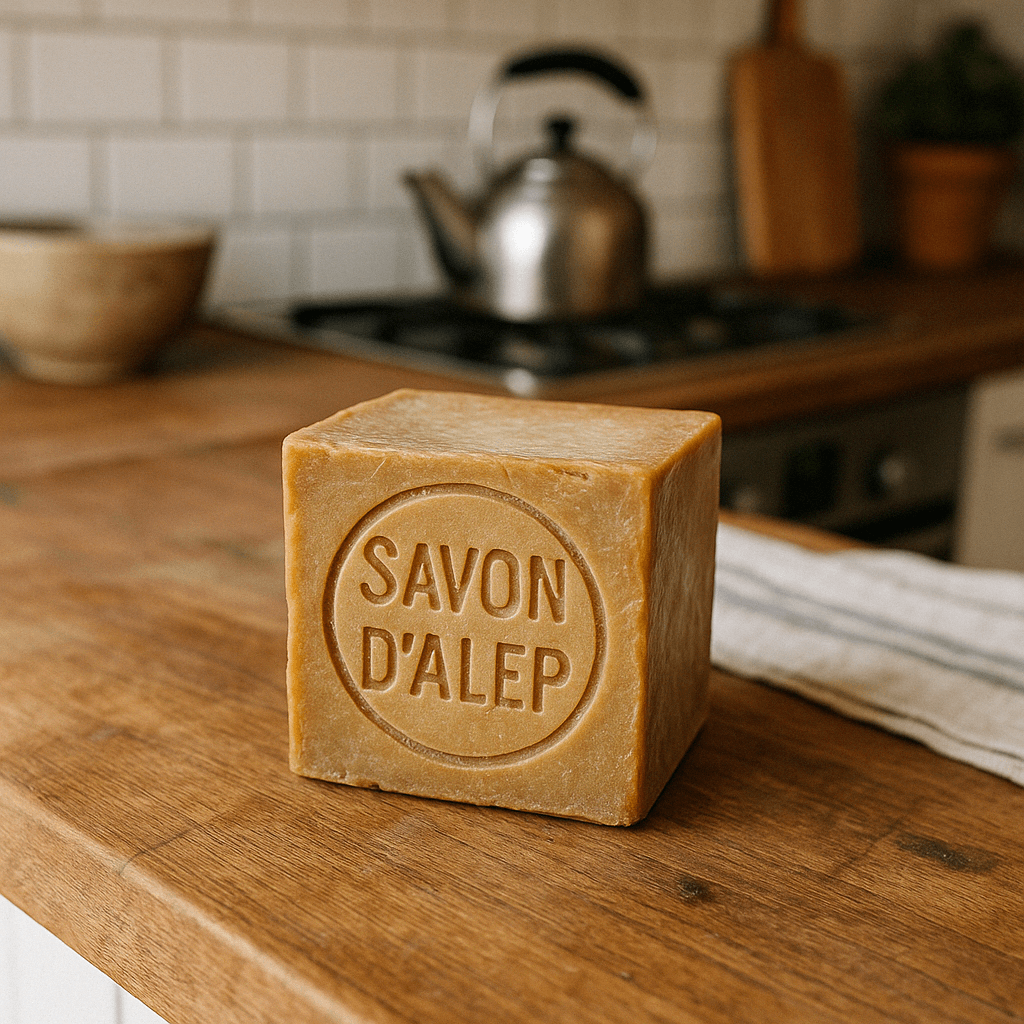
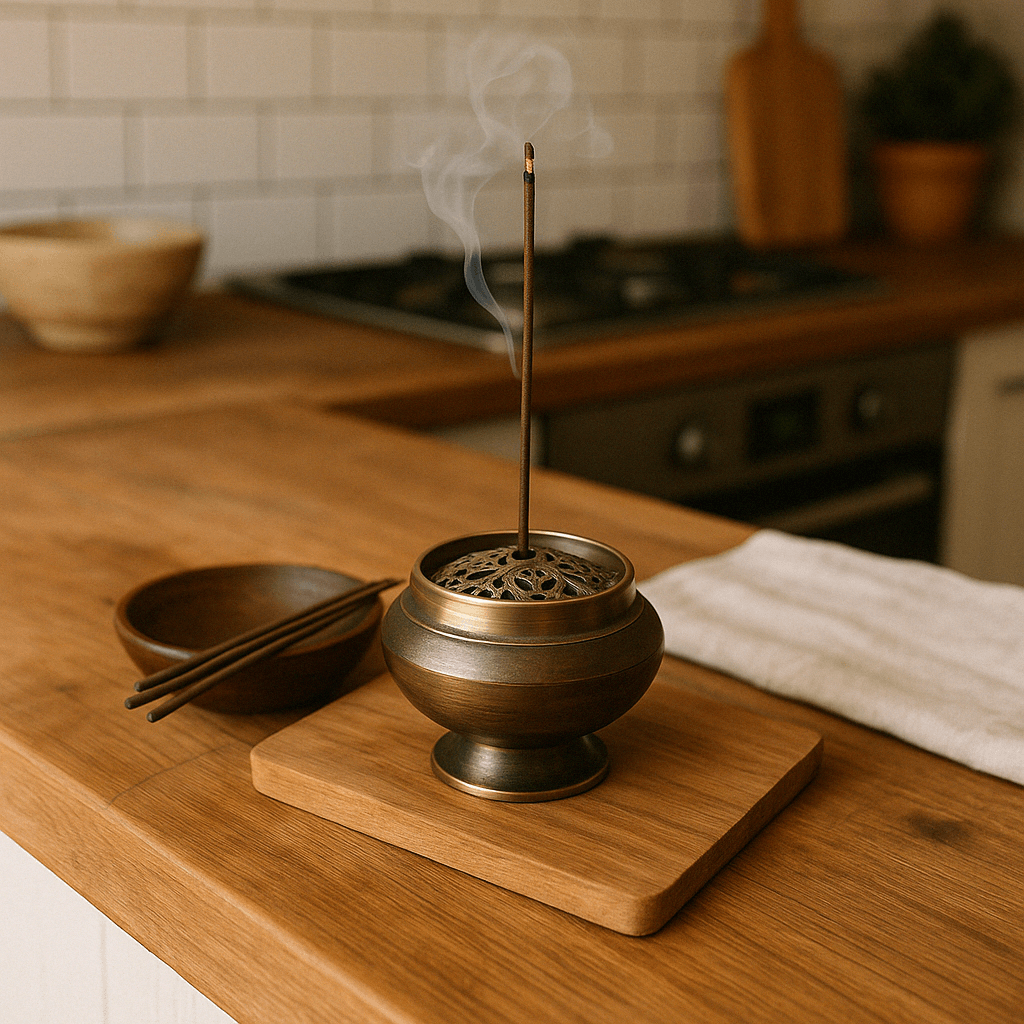
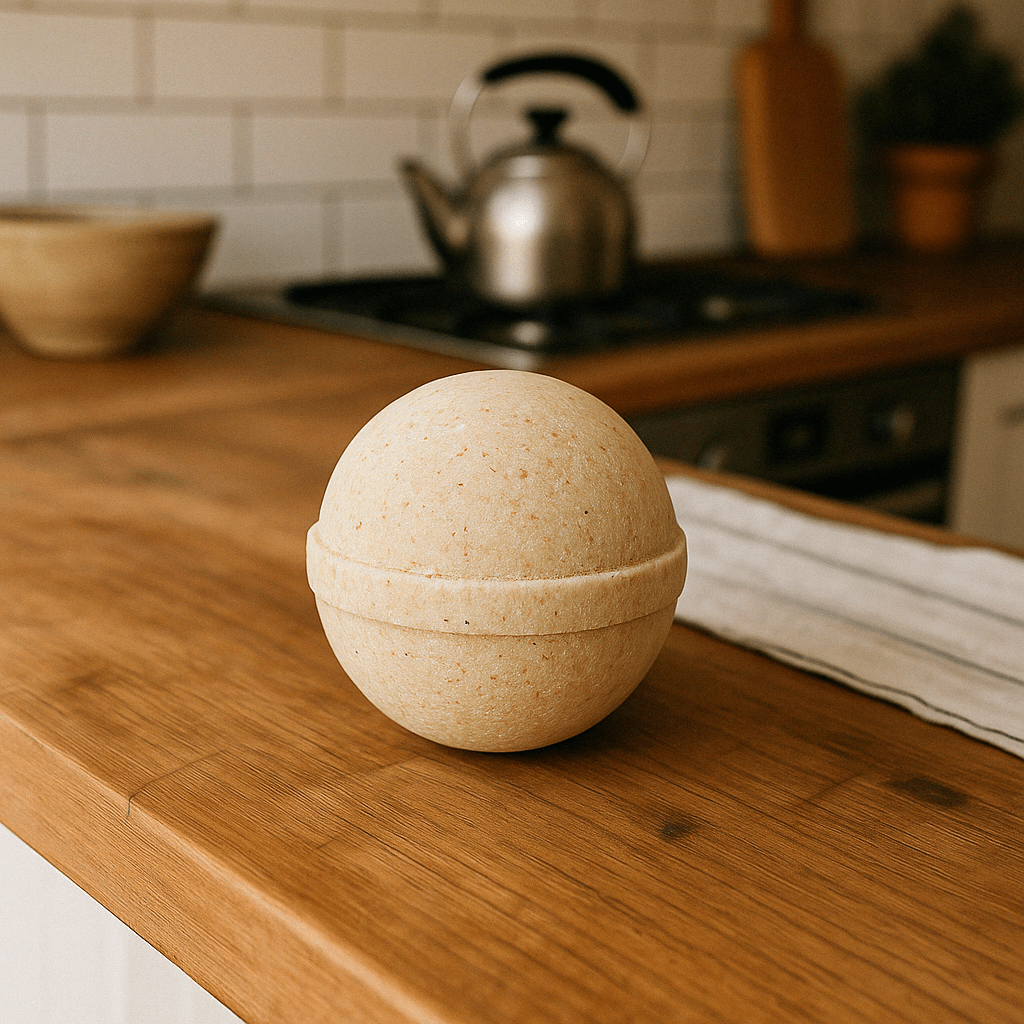
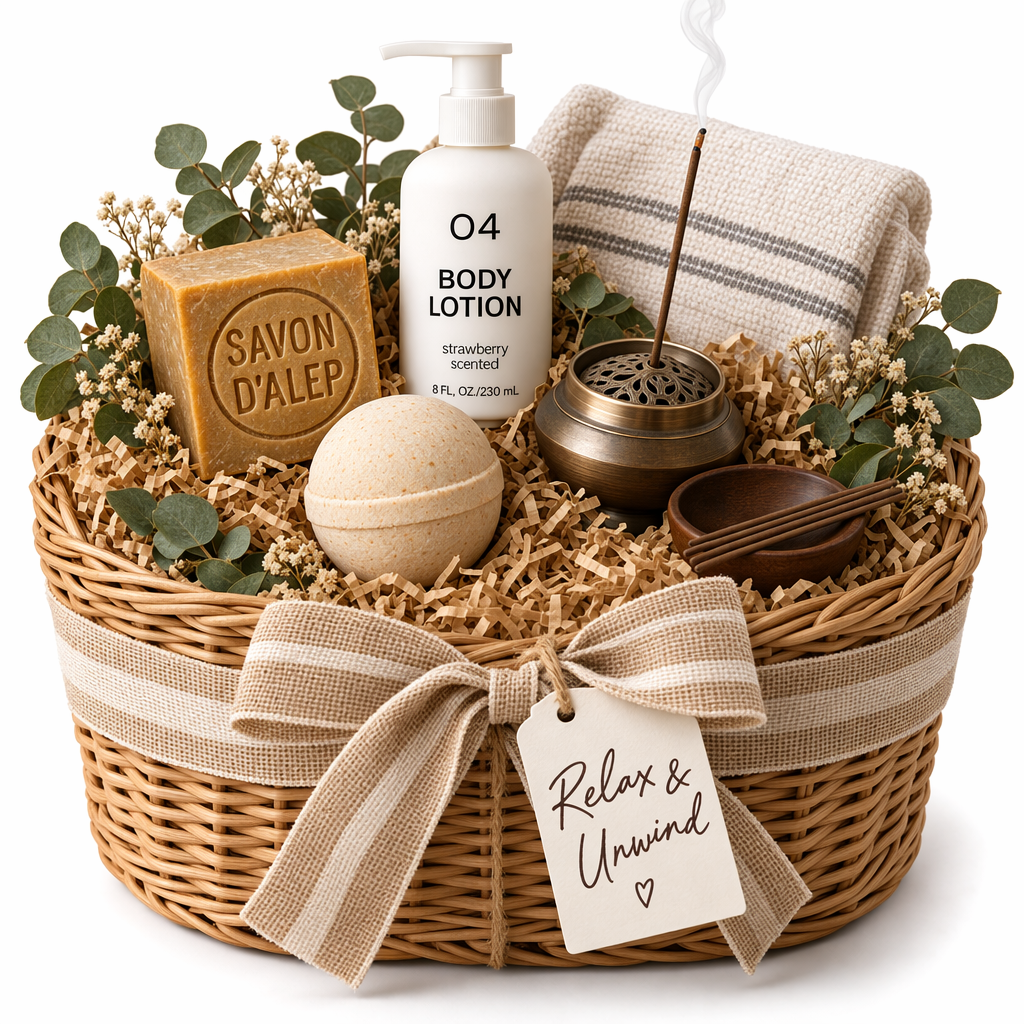
The input products and final gift set stay in one visual group, so you can judge what was carried through.
Give each reference a clear job before generating: one can establish the primary product, while others supply packaging, material, or supporting items. State which shapes, labels, colors, and proportions must remain recognizable, then describe the shared setting separately. This helps distinguish product identity from the new composition, making the result easier to review for catalog, campaign, or bundle work.
4 input reference images
Version comparison
Both versions generate and edit images with Flare and Sunburst. GPT Image 2.6 adds controls and output types for work that needs more direction.
Swipe horizontally to compare GPT Image 2.6 and GPT Image 2.5.
| What to compare | GPT Image 2.5 | GPT Image 2.6 |
|---|---|---|
Core image workflow | Generate and edit images with Flare for fast, everyday work or Sunburst when editing precision matters most. | Keeps the Flare and Sunburst choice, then adds controls for planning, targeted edits, and new delivery formats. |
Composition planning | Use prompt, reference images, size, and quality to direct the result. | Adds complexity: low, medium, or high. It controls how much the model plans before rendering, which is useful for dense text, complex layouts, and object relationships. |
Precise local edits | Edit an input image with a prompt that describes the requested change and the details to preserve. | Adds markup-guided edits: mark the exact area on a transparent PNG overlay, then describe the change while preserving the rest of the image. |
Output and delivery | Use the standard static-image workflow with quality, size, format, and compression controls. | Adds SVG for editable, scalable graphics and animated GIF for looping motion, alongside PNG, JPEG, and WebP. |
Detail vs. planning | Adjust quality, size, format, and compression to suit the static-image output you need. | Separates visual detail from composition planning: use quality for texture or small lettering, and complexity for how the layout is planned. |
Use one credit balance across available AI image, video, and editing tools.
What's included
What's included
What's included
Refund requests are reviewed manually. See eligibility, cancellation, and how to submit a request in our Refund Policy
Get direct answers about GPT Image 2.6 text-to-image generation, reference image editing, precise edits, and SVG or GIF output.
Start from one prompt or reference image, and give your next visual direction a path you can keep moving forward.